Does Ace work on Windows 10?
Yes. Ace runs on Windows 11 and Windows 10, on the PC you already have. There is no new PC or special hardware to buy; the AI is hosted, so asking needs an internet connection.
Where do I get the Windows installer?
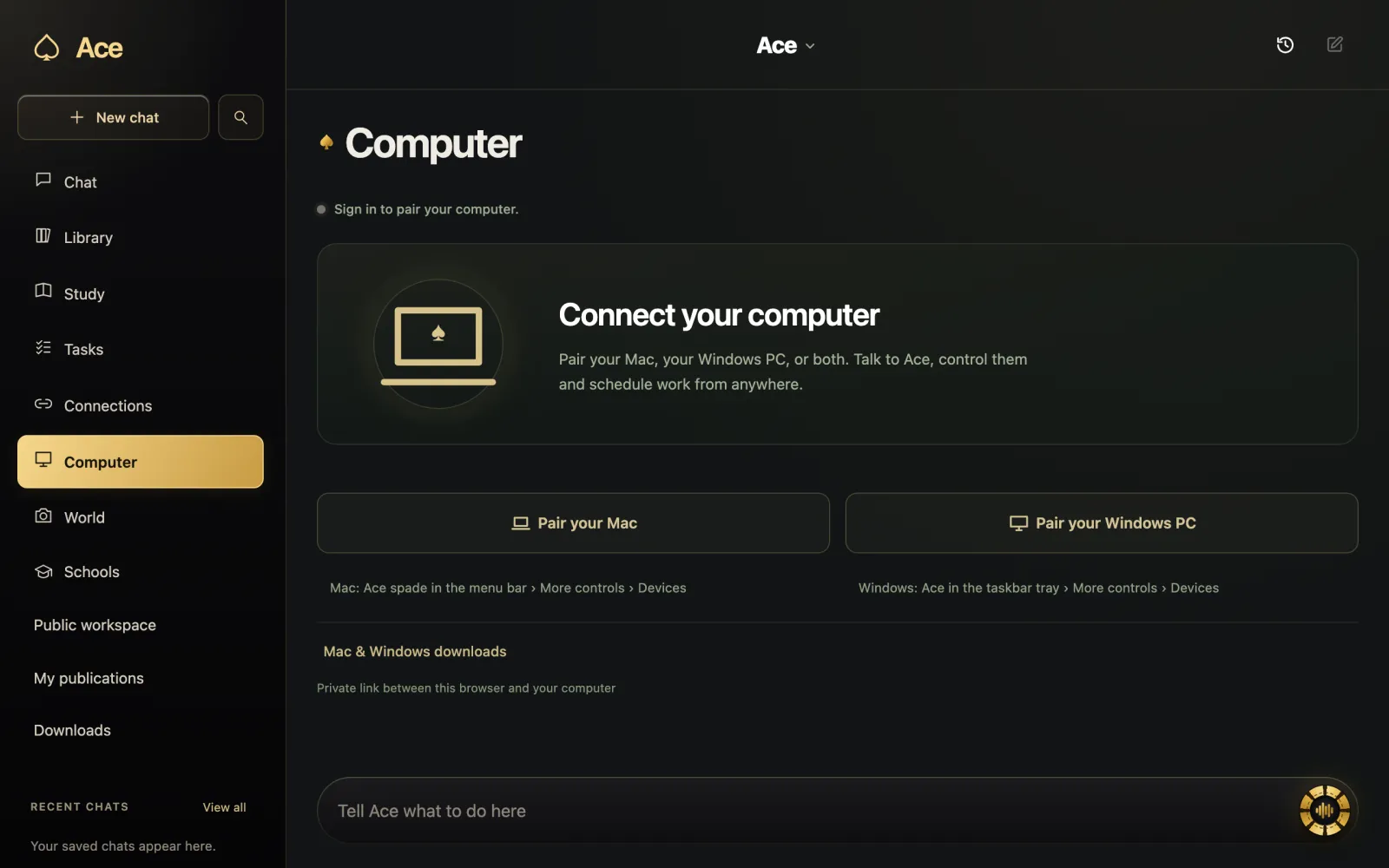
From your Ace account. Create a free account, choose Windows and download the installer there. Every release is listed with its file fingerprint, so you can check the download.
Which keys do I hold on Windows?
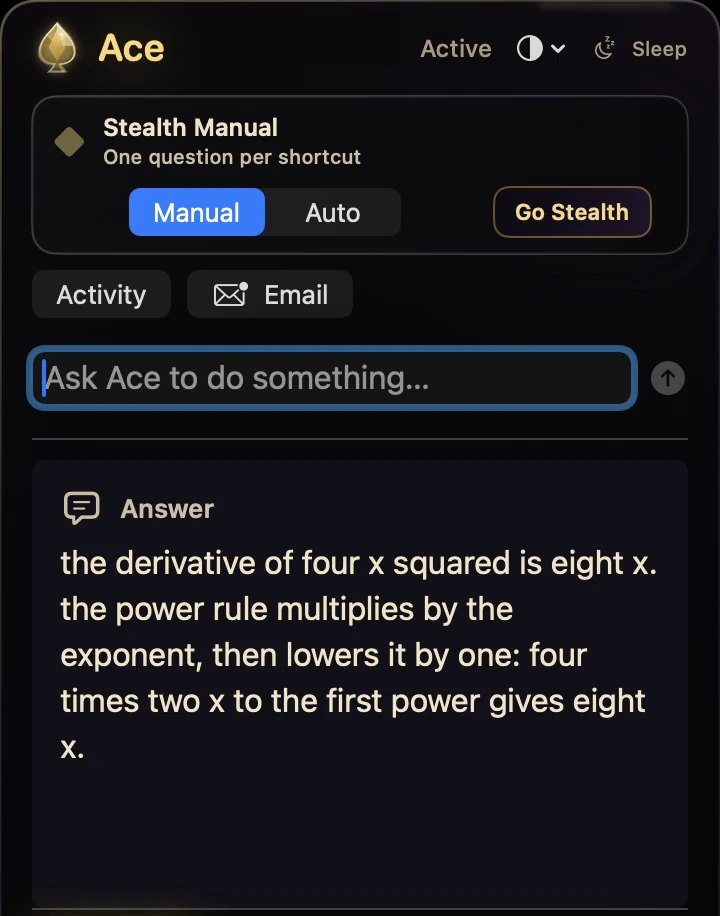
Ctrl + Shift. Hold them, then talk or type your question. Ace answers out loud in its own voice, and voice and typing keep the same conversation.
Can I turn off screen access in Windows?
Yes. Screen access goes through Windows’ own permission prompt and can be turned off at any time. Ace does not watch the screen all the time; it looks only when you ask.
Is Ace free on Windows?
Yes, to start. Free Play gives you 2,000 credits with no card. Paid plans start at $20 a month, and one-time top-ups start at $10.
Does Ace work with any Windows app?
Ace works beside the app you are in. When you allow screen access and ask, it looks at that window, whether it is a browser, Excel, Outlook, a PDF or an error dialog.
Can I type instead of talking?
Yes. Hold Ctrl + Shift and type, or talk. Voice and typing share the same conversation, and Ace can read its answer out loud.
What happens to what I ask?
Only what you choose goes with a request. Screen and microphone access are Windows permissions you can switch off at any time.
Do you need a Copilot+ PC to use AI on Windows 11 or Windows 10?
No. Ace runs on ordinary Windows 11 and Windows 10 PCs and laptops without a 40+ TOPS NPU chip because its AI is hosted online (or routed to your own connected subscription on Private Table). Hold Ctrl + Shift, ask about the window in front of you, and Ace answers out loud starting free with 2,000 credits and no card.