The best AI assistant for Windows 11
There is no single best one; the right pick depends on how you work. Copilot is built into Windows 11 and Microsoft 365. ChatGPT, Claude, Gemini and Perplexity bring their own accounts and Windows apps. Ace, made by the team behind this guide, is a hold-to-talk assistant that answers out loud and looks at your screen only when you ask. Compare them on the five points below, then test two with your own work.

Free Play: 2,000 credits, no card. Ace by Black Label.

Five things that separate them
Most assistants answer everyday questions well enough. On a Windows PC the differences are practical:
- How you call it up: a dedicated key, a keyboard shortcut, a wake word, or a window you switch to.
- Voice: whether you can speak to it, whether it speaks back, and whether it listens all the time or only while you press something.
- Your screen: whether it can see what you are looking at, and who decides when.
- Files and apps: whether it can open documents, use tools on the PC or work inside Office.
- Cost at daily use: message limits, credits, or a subscription you may already be paying for.
Side by side on Windows 11
The facts below come from each maker’s own pages as read on October 28, 2026. This comparison is written by the team that makes Ace, so read the Ace row as the maker’s description, exactly like every other row.
| Assistant | How you open it on Windows | Signs in with | Stands out for |
|---|---|---|---|
| Copilot | Copilot key or Windows key + C | A Microsoft account; signing in adds history and voice | Copilot Vision can see a shared window during a voice chat |
| ChatGPT | Ctrl + Alt + N opens Quick chat | A ChatGPT account, on any plan | Appshots send a screenshot and text from the app in front |
| Claude | Desktop app for Windows 10 or later | A Claude account; chat works on Free | Desktop extensions connect local tools |
| Gemini | Alt + Space, on top of any window | A Google Account | Opens on top of whatever you are working in |
| Perplexity | Ctrl + Shift + X starts voice input | A Perplexity account | A floating bar that sits over other apps |
| Ace | Hold Ctrl + Shift and speak, or type | An Ace account via Google or an email link | Answers out loud; looks at the screen only when you ask |
Copilot: already on the PC
Copilot’s advantage is placement. It opens from the Copilot key or Windows key + C, can open as a full window or a smaller quick view, and comes on new Windows 11 PCs. Copilot Vision lets it look at a browser window or app you share during a voice chat, and Microsoft 365 Personal, Family and Premium put Copilot inside Word, Excel, PowerPoint and Outlook. The trade-off is that the fuller features sit behind a personal Microsoft account and, for heavier use, a Microsoft 365 subscription that starts at $9.99 a month.
ChatGPT, Claude, Gemini and Perplexity
Each of these is strongest if you already use its account elsewhere, because your chats follow you into the Windows app.
- ChatGPT: one desktop app now holds Chat, Work and Codex, and OpenAI says it is available on every plan, including Free.
- Claude: the desktop app needs Windows 10 or later; the Free plan covers chat, and paid plans add Cowork, its task feature.
- Gemini: Google’s Windows app needs Windows 10 or later and 8 GB of memory; Google’s separate desktop search app also answers to Alt + Space.
- Perplexity: the Windows app needs Windows 10 version 1809 or later and starts voice input with Ctrl + Shift + X.
Where Ace fits
This guide covers Ace AI for Windows by Black Label Tec. Ace Browser is a separate web browser.
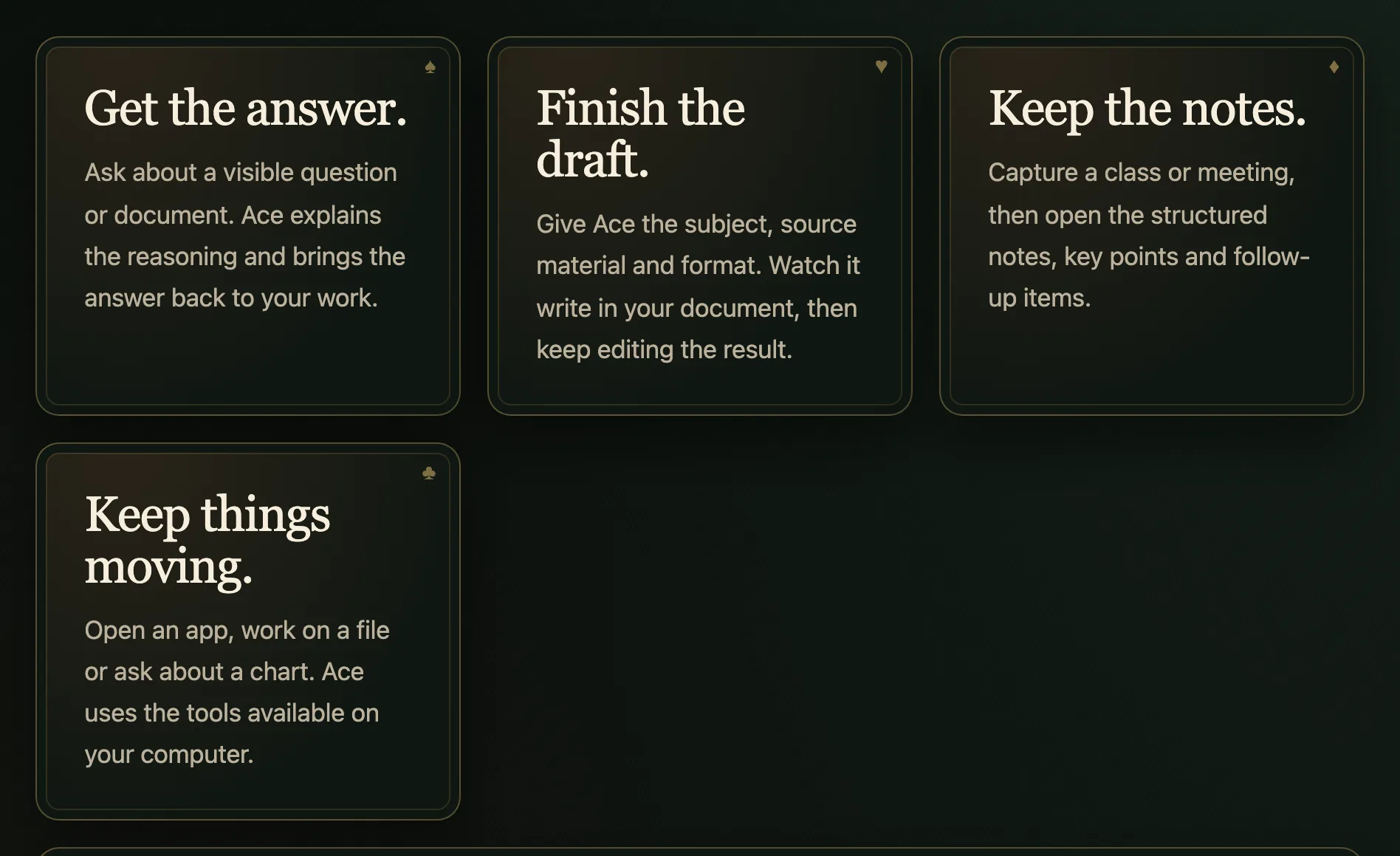
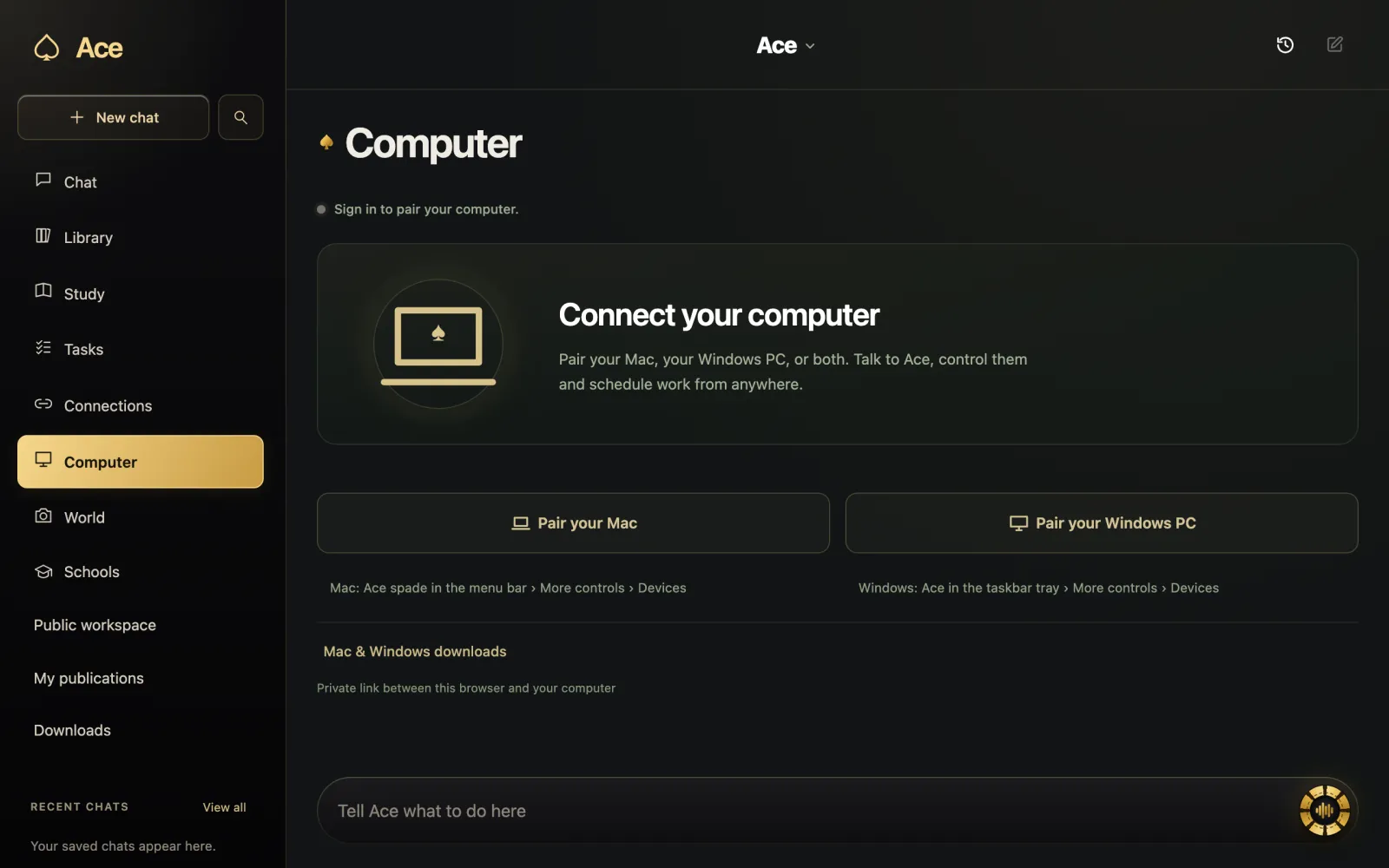
Ace suits people who would rather say the question than type it. Hold Ctrl + Shift, speak, let go, and the answer comes back in Ace’s own voice; typing works in the same conversation. When the question is about something on screen, Ace looks after you have allowed screen access, and not otherwise. It also keeps notes, with key points and flashcards, from what it heard or read.
It can run on an AI subscription you already have: on Table Pass ($20 a month) and Private Table ($75 a month), Ace answers through your own ChatGPT, Claude or Grok subscription. Its AI is hosted, so asking needs an internet connection.
A fair test with your own work
Install two candidates and give each the same three jobs:
- Open an error message or a confusing settings page and ask what it means and what to do next.
- Open a long web page or PDF and ask for the three points that matter for a decision you have to make.
- Open an email you need to answer and ask for a short, polite reply.
Count how much copying, pasting and explaining each one needed before it could help, then check every answer for mistakes. The assistant that needed the least setup for your kind of work is the best one for you.
Privacy questions to settle first
Before an assistant sees your screen or files, find three things on its maker’s pages: what is sent when you ask, whether you can delete your history, and whether conversations are used to train models. Copilot, for example, has a saved-memories setting and lets you delete chat history from the Microsoft privacy dashboard. Ace sends the request and the context you choose to the AI that answers it, while your files, recordings and work results are handled on your computer.
More from Ace
The full overview of Ace for Windows is on tryacee.com/windows-ai-assistant.
Also asked
Is Copilot enough, or should I add another assistant?
If you use Microsoft 365 and like Copilot’s answers, it may be all you need. People add a second assistant when they already pay for another service, want a different way to talk to it, or want one that acts only when they press a key.
Can I run more than one AI assistant on Windows 11?
Yes. Watch for shortcut clashes: Google’s Gemini app and its desktop search app both use Alt + Space, so change one in its settings if you install both.
Which assistants on Windows 11 can see my screen?
Copilot can when you share a window with Copilot Vision during a voice chat, ChatGPT’s Appshots send a screenshot of the app in front, and Ace looks when you ask after you have allowed screen access.
Is this comparison independent?
No. It is written by the team that makes Ace. Every fact about another product comes from that maker’s pages as read on October 28, 2026; features and prices change, so confirm on their sites before you pay.
How can I fairly test two AI assistants with my own Windows work?
Install two candidates and give each the same three jobs: ask what an error message or confusing settings page means, ask for the three points that matter in a long web page or PDF, and ask for a short, polite reply to an email. Count how much copying, pasting and explaining each one needed, then check every answer for mistakes.
What actually separates one Windows AI assistant from another?
Five practical points. Compare how you call it up (a dedicated key, a shortcut, a wake word or a window you switch to), whether it speaks back and listens all the time or only while you press something, whether it can see your screen and who decides when, whether it can open documents, use tools on the PC or work inside Office, and its cost at daily use.
Which keyboard shortcut opens each AI assistant on Windows?
Copilot opens from the Copilot key or Windows key + C, and ChatGPT’s Quick chat from Ctrl + Alt + N. Claude runs as a desktop app for Windows 10 or later, Gemini appears on top of any window with Alt + Space, Perplexity starts voice input with Ctrl + Shift + X, and with Ace you hold Ctrl + Shift and speak, or type.
What does Perplexity’s Windows app need, and how does it work?
Windows 10 version 1809 or later and a Perplexity account. The app starts voice input with Ctrl + Shift + X and shows a floating bar that sits over other apps. As with ChatGPT, Claude and Gemini, it fits well if you already use its account elsewhere, because your chats follow you into the Windows app.
Is Ace a good voice assistant for Windows 11?
It suits people who would rather talk than type. Ace is made by the team behind this guide, and the right pick depends on how you work. Hold Ctrl + Shift, speak, let go, and the answer comes back in Ace’s own voice; typing works in the same conversation. When you ask about something on screen, Ace looks only after you have allowed screen access. Copilot is built into Windows 11 and Microsoft 365.
Can Copilot open as a small window on Windows 11?
Yes. Copilot can open as a full window or a smaller quick view. It comes on new Windows 11 PCs and opens from the Copilot key or Windows key + C. The trade-off is that the fuller features sit behind a personal Microsoft account and, for heavier use, a Microsoft 365 subscription that starts at $9.99 a month.
Which privacy questions should I settle before an assistant sees my screen?
Three. Check the maker’s pages for what is sent when you ask, whether you can delete your history, and whether conversations are used to train models. Copilot has a saved-memories setting and lets you delete chat history from the Microsoft privacy dashboard. Ace sends the request and the context you choose to the AI that answers it; your files, recordings and work results are handled on your computer.
Does ChatGPT’s Windows app do more than chat?
Yes. One desktop app now holds Chat, Work and Codex, and OpenAI says it is available on every plan, including Free. Quick chat opens with Ctrl + Alt + N, and Appshots send a screenshot and text from the app in front of you. You sign in with a ChatGPT account on any plan.
More questions
Deal yourself in.
More about Ace
Sources
- Keyboard shortcuts in Windows | Microsoft Support, Microsoft Support. Checked November 14, 2026.
- Access Microsoft Copilot on Windows | Microsoft Support, Microsoft Support. Checked November 14, 2026.
- Use the Gemini app for Windows - Gemini Apps Help, Google Gemini Help. Checked November 14, 2026.